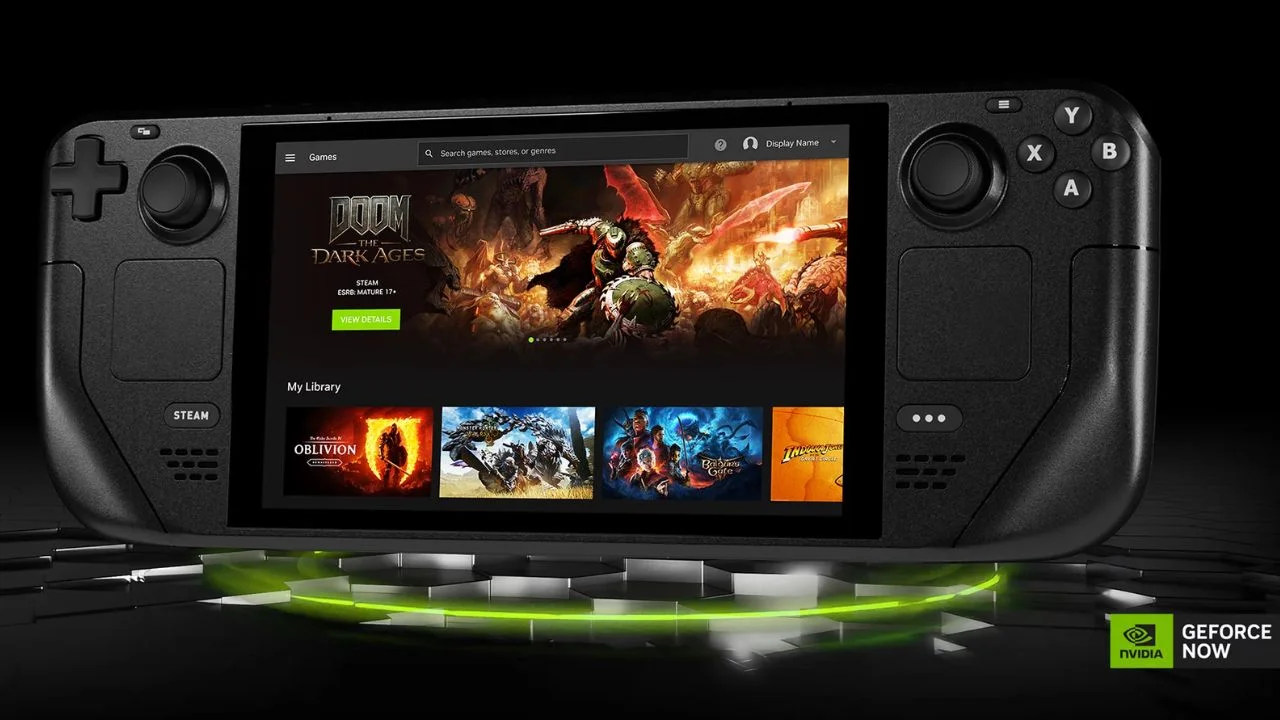
NVIDIA has released a native GeForce NOW application for Valve’s handheld console, the Steam Deck. The new app simplifies the process of using the cloud gaming service on the device, making it easier than ever to stream PC games on the go.
GeForce NOW enables remote access to over 2,200 titles available through platforms such as Steam, Epic Games Store, and PC Game Pass. All games are rendered in the cloud, meaning the Steam Deck doesn’t need to process graphics locally. This allows for high-quality visuals up to 4K resolution at 60 frames per second, with support for technologies like HDR, DLSS 4, and NVIDIA Reflex.
Cloud gaming also improves the energy efficiency of the Steam Deck — as a result, battery life can last up to twice as long compared to running games locally. The latest version of GeForce NOW is available for download directly from NVIDIA’s website.
How to Install GeForce NOW on Steam Deck
- Switch to Desktop Mode
On your Steam Deck, press the Steam button → Power → Switch to Desktop Mode. - Download the Installer
Visit gfn.link/download, download the installer, and run the “GeForceNowSetup” file. - Follow the Installation Steps
When prompted, select “Run” and follow the on-screen instructions. - Return to Gaming Mode
Once the installation is complete, switch back to Gaming Mode and locate GeForce NOW under the “Non-Steam” or “Other” section in your Steam Library.
If the installation fails, restart your Steam Deck and try again.
For additional details, visit the official NVIDIA website.