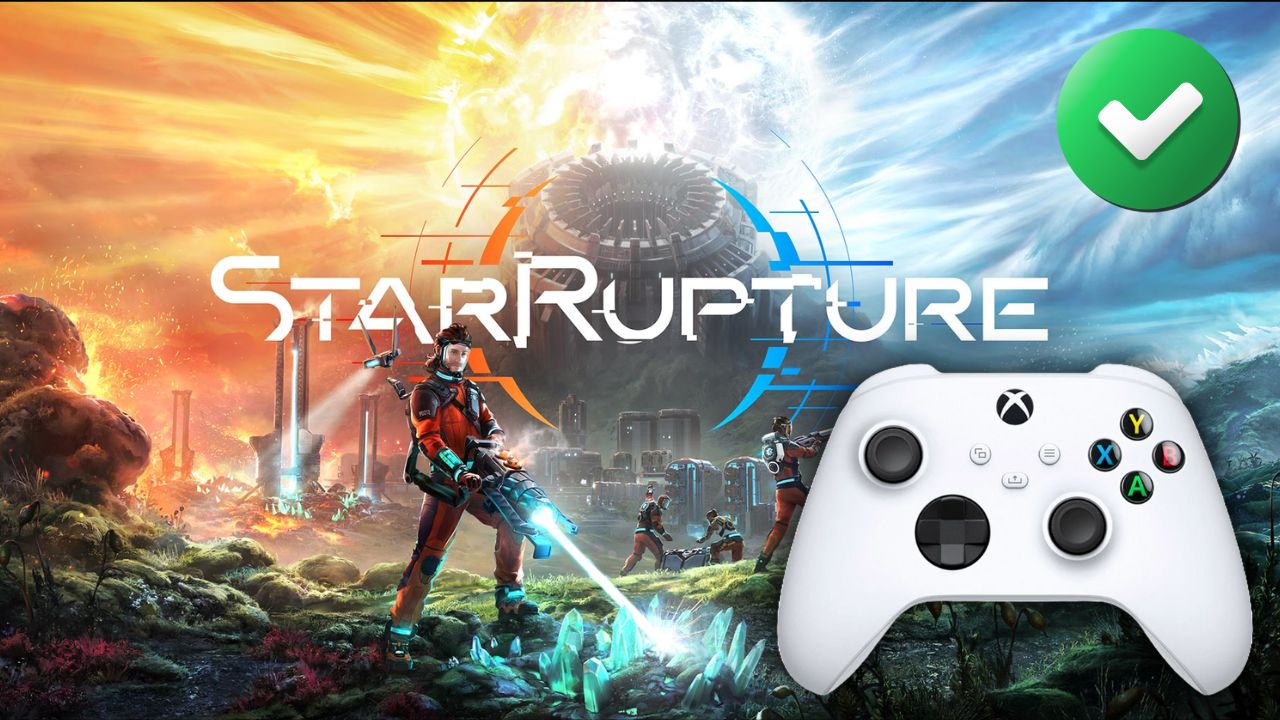
No gamepad support in StarRupture? Download a proven Steam Input layout (over 20,000 hours of gameplay). See how to configure gamepad controls in StarRupture.
How to enable gamepad in StarRupture?
StarRupture is a game that draws you in for long hours, but many players bounce off the wall due to the lack of native gamepad support. Keyboard and mouse controls don’t suit everyone, especially during longer sessions on the couch.
StarRupture on a gamepad? Complete Steam Input configuration guide
The good news is that you don’t have to wait for an official update. I managed to prepare a solution that has been tested for a total of over 20,000 hours of gameplay. This layout uses advanced Steam Input functions to make gameplay comfortable and intuitive.
Step 1: How to download the proven layout?
You don’t have to configure everything manually. Just download the ready-made profile:
- Open your Steam library, right-click on StarRupture and select Properties… or connect your controller and enter Controller Settings.
- Click on the name of the current layout to open the configuration browser.
- Go to the Community Layouts tab.
- Search for and download the layout named:
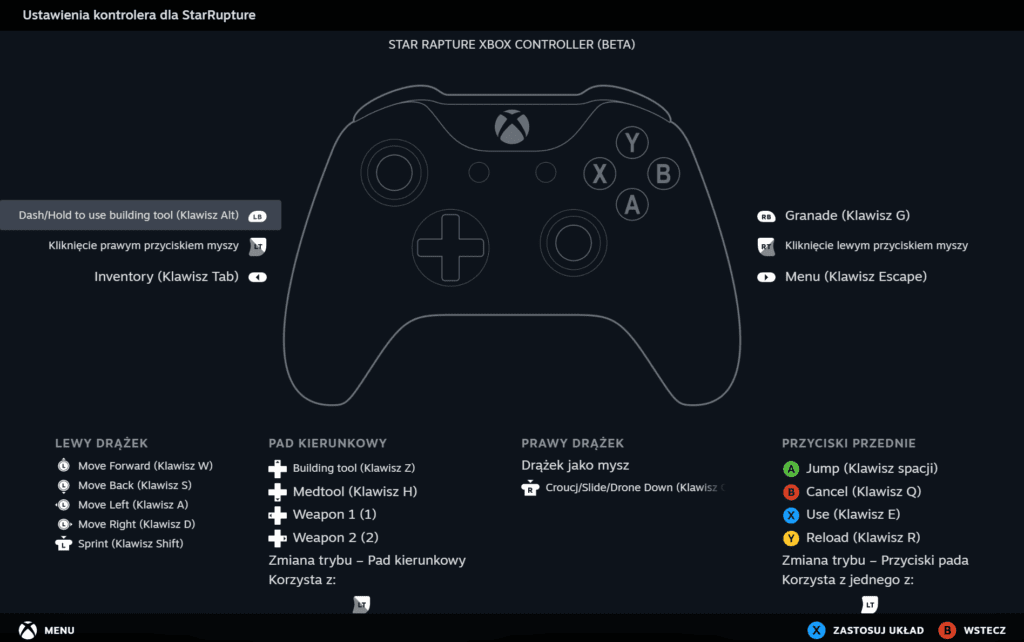
STAR RAPTURE XBOX CONTROLLER (BETA).
Step 2: Key change in game settings
Before you start, do one thing in the menu of the game itself that will save your thumb. Since running under the left analog stick can be tiring when holding it constantly:
Important: Go to Game Options -> Controls and change the running mode to Toggle. Thanks to this, you only need to click the left stick once for the character to run, instead of holding it down.
Step 3: How does it work? (Controls description)
This layout is brilliant in its simplicity, but it uses a clever system of “layers” (Mode Shift). Here is the cheat sheet:
Basic movement and combat
The layout resembles standard controls known from other FPS shooters:
- Left Stick: Movement (WASD) + Click is Sprint (Shift).
- Right Stick: Looking (Mouse) + Click is Crouch/Slide/Drone Down (Ctrl).
- RT (Right Trigger): Shoot / Use Tool (LMB).
- RB (Right Bumper): Grenade (G).
- LB (Left Bumper): Dash / Dodge (Alt).
Action Buttons (ABXY) – Basic Mode
When you are just running and fighting:
- A: Jump (Space)
- B: Cancel (Q)
- X: Use / Interact (E)
- Y: Reload (R)
Advanced Mode (Shift Mode) – This is where the magic happens!
I solved the problem of missing buttons in an interesting way. Holding the Left Trigger (LT) acts not only as aiming (RMB) but also changes the function of the other buttons.
When you hold LT (Aiming), the ABXY buttons turn into tools:
- LT + Y: Building Tool (B)
- LT + B: Destruction Tool (F)
- LT + X: Deconstruction (Q)
- LT + A: Medkit (H)
D-Pad (Cross key) – Inventory and Functions
The D-Pad also has two modes of operation.
Standard:
- ⬆️ Up: Building Tool (Z)
- ⬇️ Down: Medical Tool (H)
- ⬅️ Left: Weapon 1
- ➡️ Right: Weapon 2
With LT pressed (Shift Mode):
- ⬆️ / ⬇️ : Mouse scrolling (useful in build menu/backpack/options)
- ⬅️ Left: Flashlight (T)
- ➡️ Right: Map (M)
Menus
- View Button (Select): Inventory (Tab)
- Menu Button (Start): Pause Menu (Esc)
Summary
Thanks to this configuration, StarRupture becomes fully playable on the couch. The layout “STAR RAPTURE XBOX CONTROLLER (BETA)” enjoys very high interest among players. Download, test, and let me know how you play!